

Desk Setup Guide
Build a desk that plays with intent.
A refined gaming station is not defined by how much equipment it holds. It is defined by how naturally control, display, audio, streaming, comfort and cable flow work together. Use this guide to plan each layer before you add the next.

Plan the desk in five deliberate passes.
Working in sequence helps prevent monitor stands, microphone arms, cables and control devices from competing for the same space.
Define the primary use
Decide whether the desk must prioritize competitive play, streaming, console access, simulation controls or a balanced mix.
Purpose LayerSet the visual axis
Position the main monitor first, then add secondary displays, arms or stands without blocking sightlines.
Display LayerAnchor the control zone
Center the keyboard, mouse pad, mouse and controller around a relaxed, repeatable hand position.
Control LayerRoute audio and capture
Give headsets, microphones, webcams, lights, capture cards and audio interfaces dedicated access paths.
Signal LayerFinish the underside
Secure excess cable length, separate power from moving controls and keep service points reachable.
Routing LayerDivide the surface before equipment starts competing for space.
Think of the desk as connected operating zones. The center supports action, the upper area supports information, and the outer edges support communication, storage and expansion.
Refine the devices you see, touch and hear most.
The strongest setup improvements usually come from better positioning and cleaner interaction, not from filling every open area.

Make the control zone feel natural before it feels complete.
Place the keyboard according to your normal movement pattern, not only the desk edge. Keep the mouse pad free of microphone cables, charging leads and controller stands. Store secondary controls close enough to reach, but outside the primary movement area.

Give every signal a clean path through the setup.
A microphone arm should enter from a side that does not cross the display or mouse path. Place audio interfaces and sound controls where adjustments can be made without leaning around the monitor. Keep webcam and light placement aligned with the area you actually use on stream.
- Position the microphone close enough for consistent use without blocking the display.
- Keep headset and speaker connections easy to inspect and replace.
- Route webcam, capture and light cables separately from moving arms when possible.
- Leave ventilation space around interfaces, capture cards and powered equipment.
Keep capture, communication and monitoring easy to trace.
A simple signal path is easier to adjust, troubleshoot and expand. Labeling and grouping connections can be more valuable than hiding every cable from view.
Support long sessions with alignment, reach and visual calm.
Adjust the setup around your natural seated position. A gaming chair, desk, monitor arm and peripheral layout should work as one system rather than separate purchases.
Monitor Alignment
Keep the primary display centered to your normal posture and position secondary screens to reduce repeated head turning.
Chair and Desk Relationship
Set chair support and desk height together so the shoulders can remain relaxed while the controls stay easy to reach.
Lighting Control
Place streaming lights and ambient lighting to reduce direct screen reflections and preserve monitor contrast.
Accessible Adjustments
Keep monitor controls, microphone gain, volume, charging points and frequently used switches within practical reach.
Route for access first, appearance second.
The cleanest desk is not the one with invisible cables. It is the one where power, data and moving equipment remain organized, supported and easy to service.
Build one clear path from the desktop to the power zone.
Group cables by destination, secure excess length below the surface and avoid pulling connections tight. Moving monitor arms, microphone arms and adjustable desks need controlled slack.
- Keep adapters and power strips supported instead of hanging from ports.
- Use separate cable routes for moving arms and stationary desktop devices.
- Leave service loops where equipment may be repositioned or replaced.
- Confirm that ventilation openings and chair movement remain unobstructed.
Reserve a path for the setup you may build next.
Simulation controls, VR accessories and console equipment often need more reach, storage and cable movement than standard desktop peripherals.
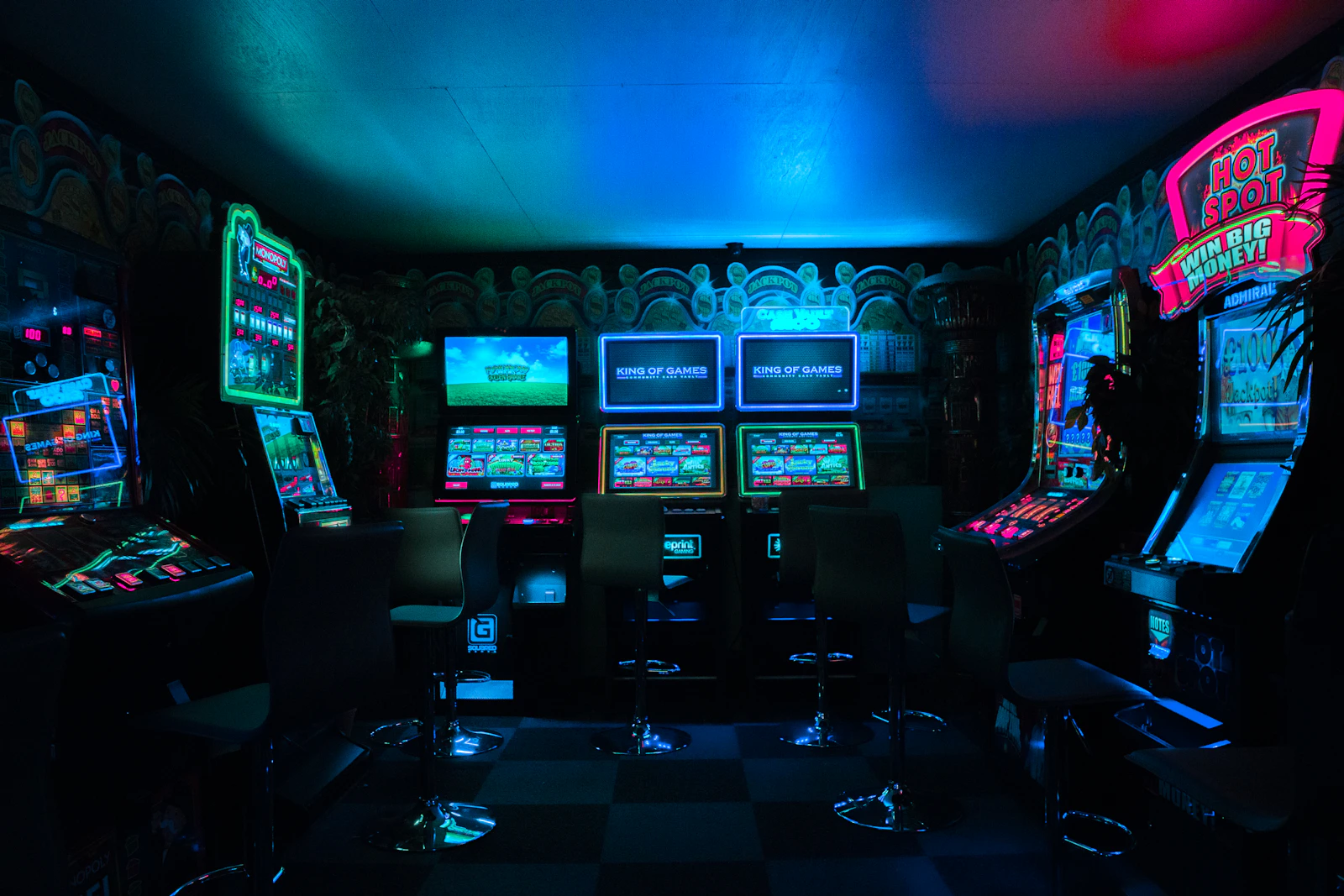
Simulation and specialized controls
Plan mounting points, leg clearance and removable control positions before adding racing wheels, pedals, flight controls or larger desk attachments.

VR, console and multi-system access
Keep charging, controllers, headsets, console connections and VR accessories organized without forcing them into the primary keyboard and mouse zone.
Practical answers for a cleaner gaming station.
What should I position first on a new gaming desk?
How can I keep a streaming setup from feeling crowded?
Where should audio interfaces and capture cards be placed?
How much cable slack should moving equipment have?
Should immersive gaming equipment share the main desk?
Shape the setup around the way you actually play.
Explore gaming controls, esports audio, streaming equipment, monitor solutions, desk organization and immersive accessories designed to support a more deliberate NexArena setup.